Space Options
Written By Side Space
Last updated Almost 2 years ago
Select Space
When you've created spaces for work, study, leisure, etc., selecting a specific space is simple:
Click the space icon at the bottom of the Side Space panel to choose the desired space.

Switching Spaces
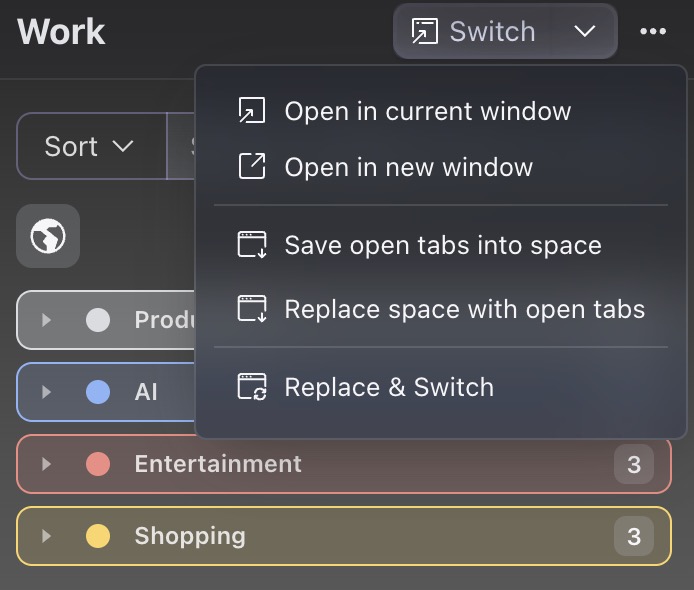
Use the Switch button at the top-right corner of the space panel to replace all current tabs in the window with the tabs from the selected space.
Opening a Space
Open in Current Window: Add the tabs from the selected space to your current window without replacing the existing tabs.
Open in New Window: Open all the tabs from the selected space in a new browser window.
Saving Tabs to a Space
Save Open Tabs into Space: Save the tabs from your current window into the selected space without removing existing tabs in the space.
Replacing Tabs in a Space
Replace Space with Open Tabs: Remove all existing tabs from the selected space and replace them with the tabs from your current window.
Rename a Space
Easily update the name of a space to reflect its purpose or contents.
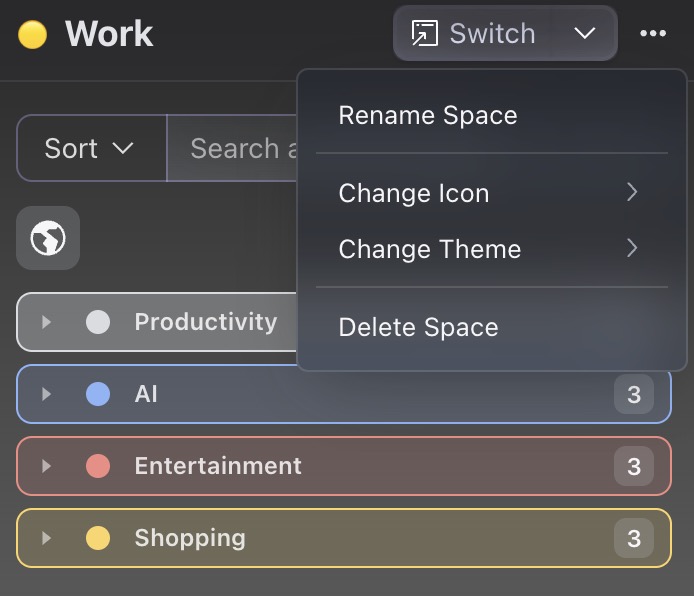
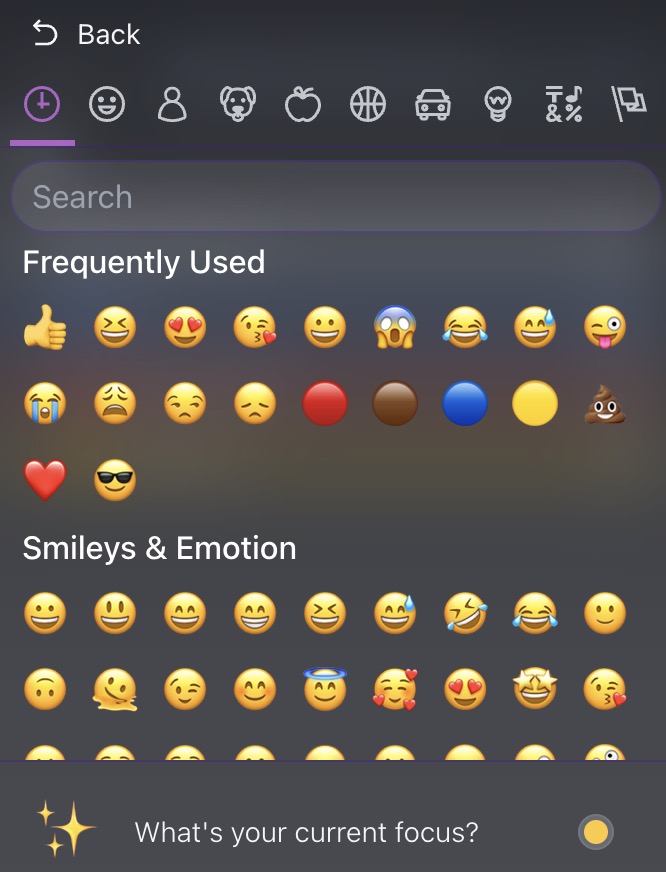
Change Icon
Choose from hundreds of emojis in our library to give your space a unique and recognizable icon.
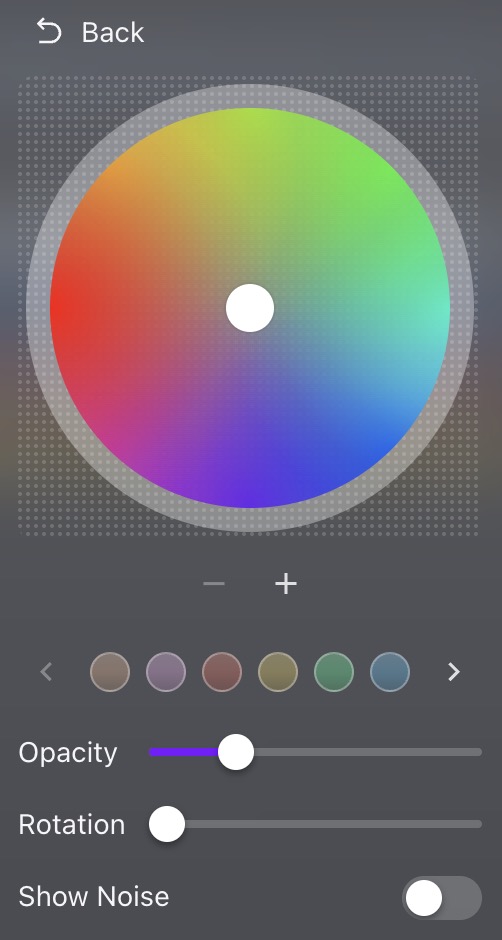
Change Theme
Personalize your space’s appearance with customizable background options:
Add up to 5 points on the color wheel for a unique gradient.
Select from pre-set color themes for quick customization.
Adjust background opacity and rotation to fine-tune the look.
Decide whether to display subtle noise effects for added texture.
Delete a Space
Remove a space by simply clicking the Delete button.
Was this helpful?
Still need help? Share an idea